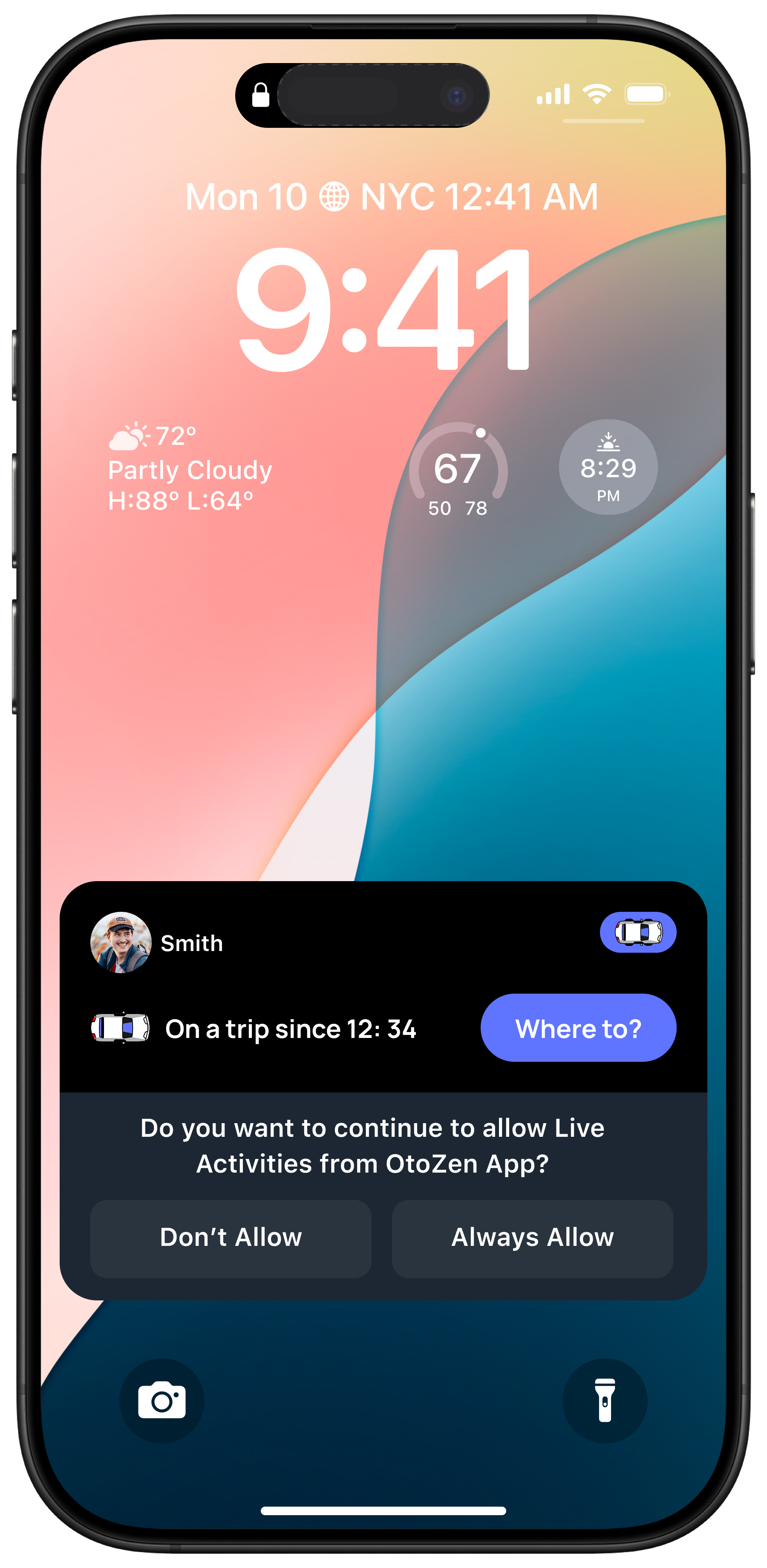
When OtoZen shows a Live Activity on your Lock Screen or Notification Bar (for example, “On a trip since 12:34 — Where to?”), iOS may ask you to allow this feature.
This is normal and required by Apple for apps that show real-time updates.
When you see this prompt for the first time
You may see:
Allow
Don’t Allow
Tap Allow to let OtoZen display trip updates on your Lock Screen.
Why do I see the prompt again?
The second time iOS shows this pop-up, you will see:
Always Allow
Don’t Allow
To avoid being asked again in the future, tap Always Allow.
This ensures OtoZen’s Live Activity updates (trip start, ETA, “Where to?” button, etc.) always appear without interruption.
If you accidentally tapped “Don’t Allow.”
Option 1: From iPhone Settings
Open your Phone Settings
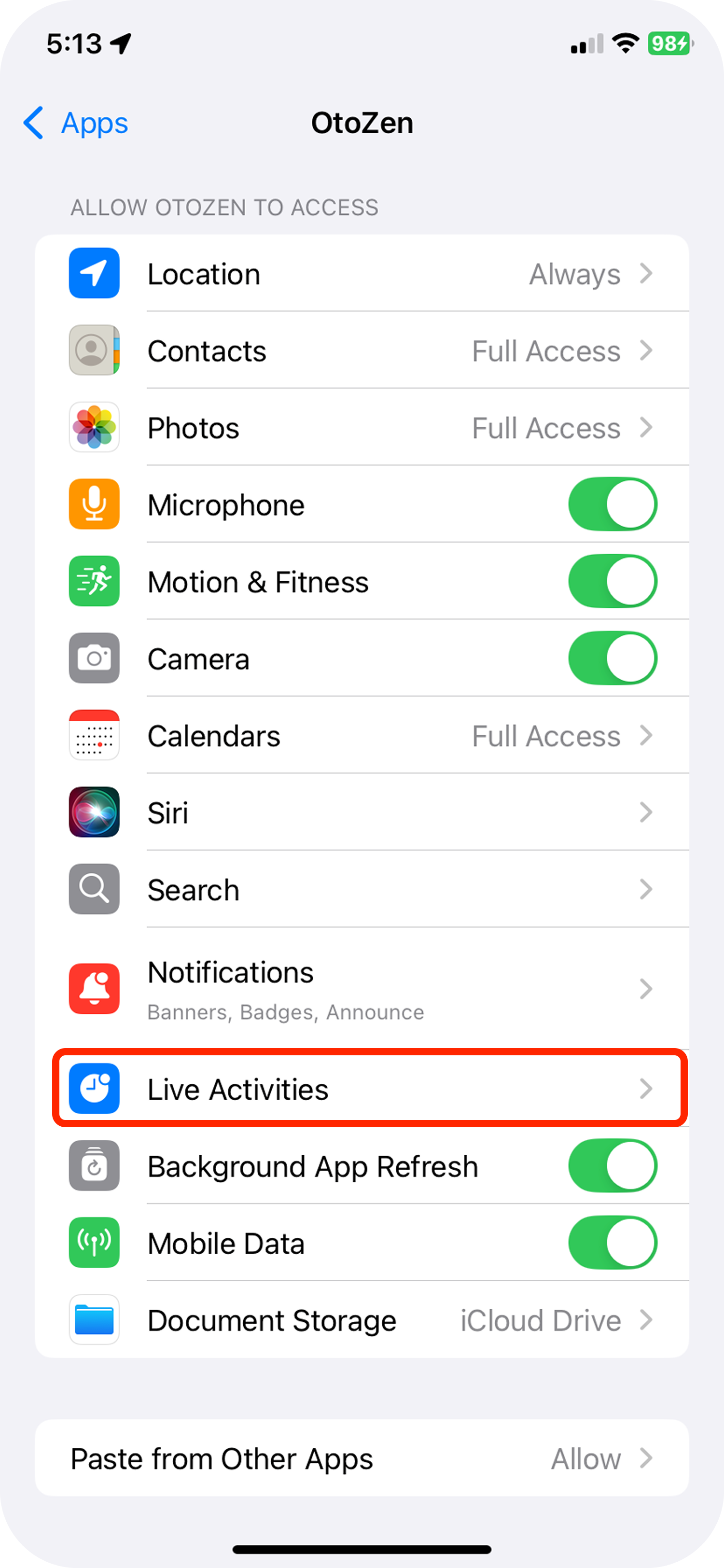
Scroll down and tap OtoZen
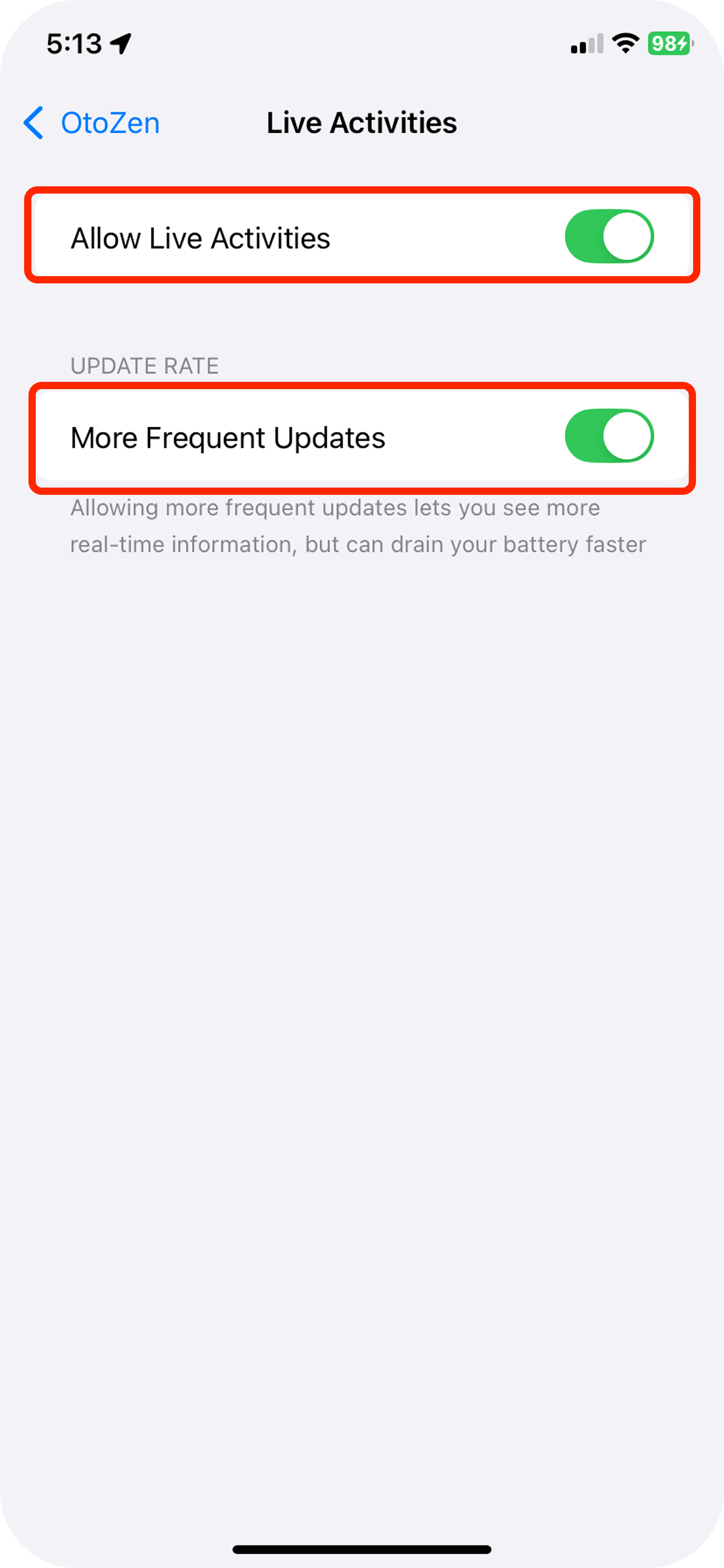
Enable Live Activities
Also, go to:
Settings > Face ID & Passcode
Scroll down and turn ON “Live Activities.”
Option 2: From the OtoZen App
Open the OtoZen app
Go to Settings
Tap Live Activities
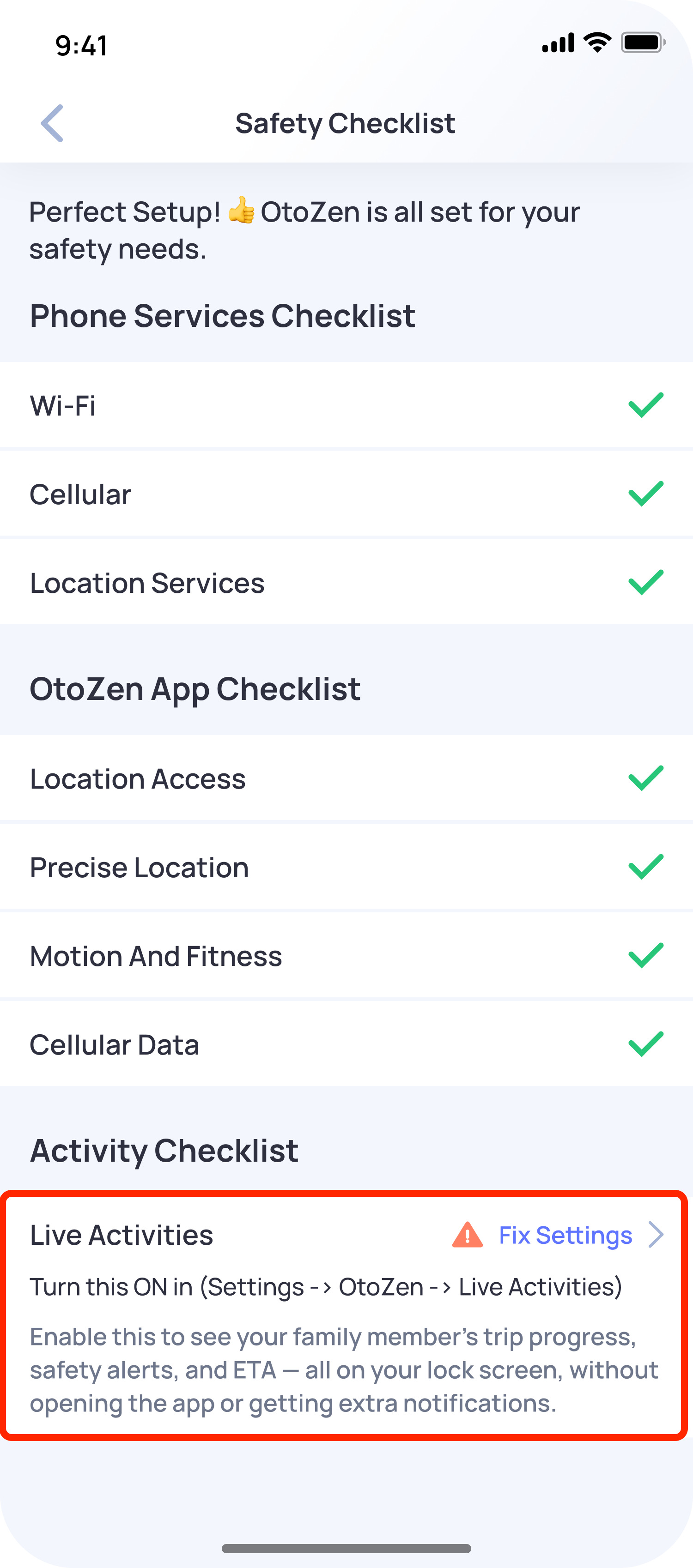
Tap “Fix Settings” and follow the instructions to enable it
Why turn this on?
Enabling Live Activities lets you see your family member’s trip progress, ETA, and safety alerts right on your lock screen—without needing to open the app or receive extra notifications.