You can set an Audio Nearby Reminder in OtoZen to hear a voice reminder when you are arriving at or leaving a selected place during a drive.
For example, OtoZen can remind you to “Bring milk” when you are 5 minutes away from home, or “Check laptop” when you leave work.
How to add an Audio Nearby Reminder
- Open the OtoZen app.
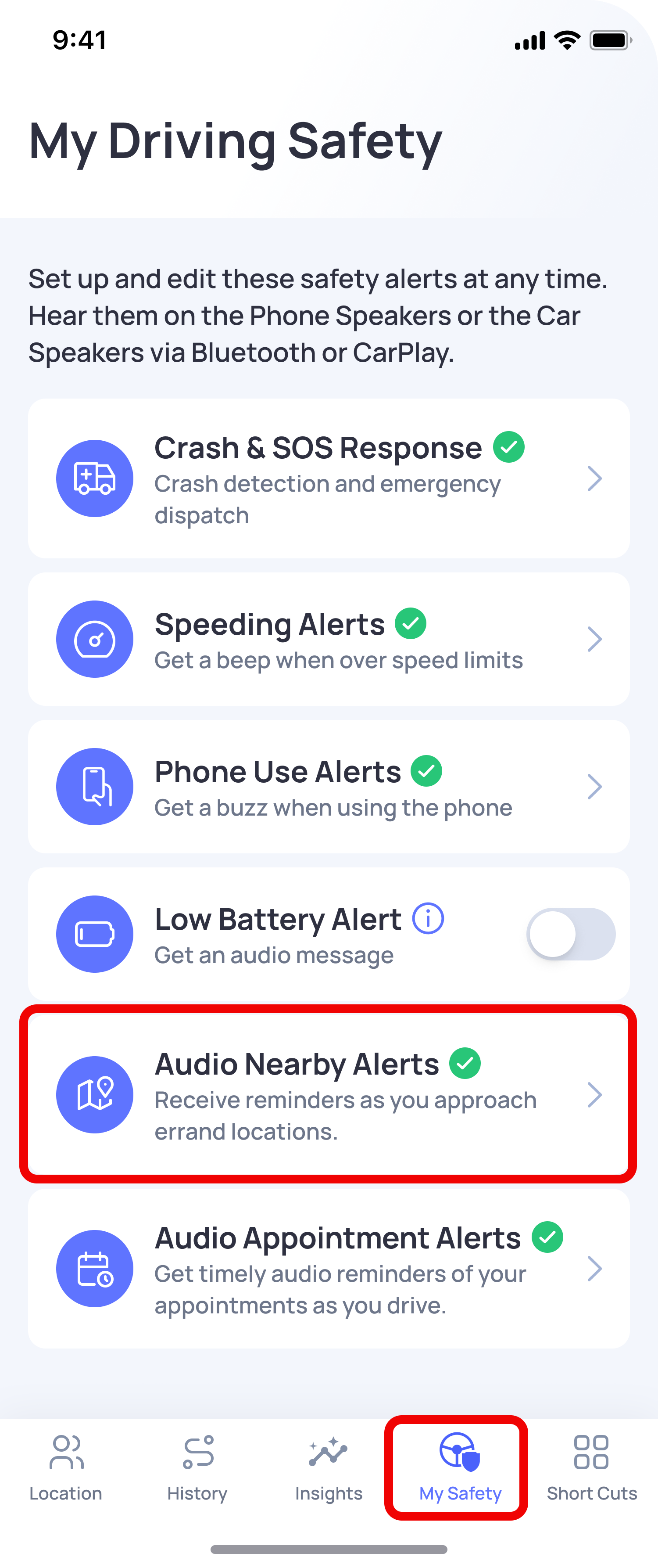
- Go to the My Safety tab.
- Tap Audio Nearby Alerts.
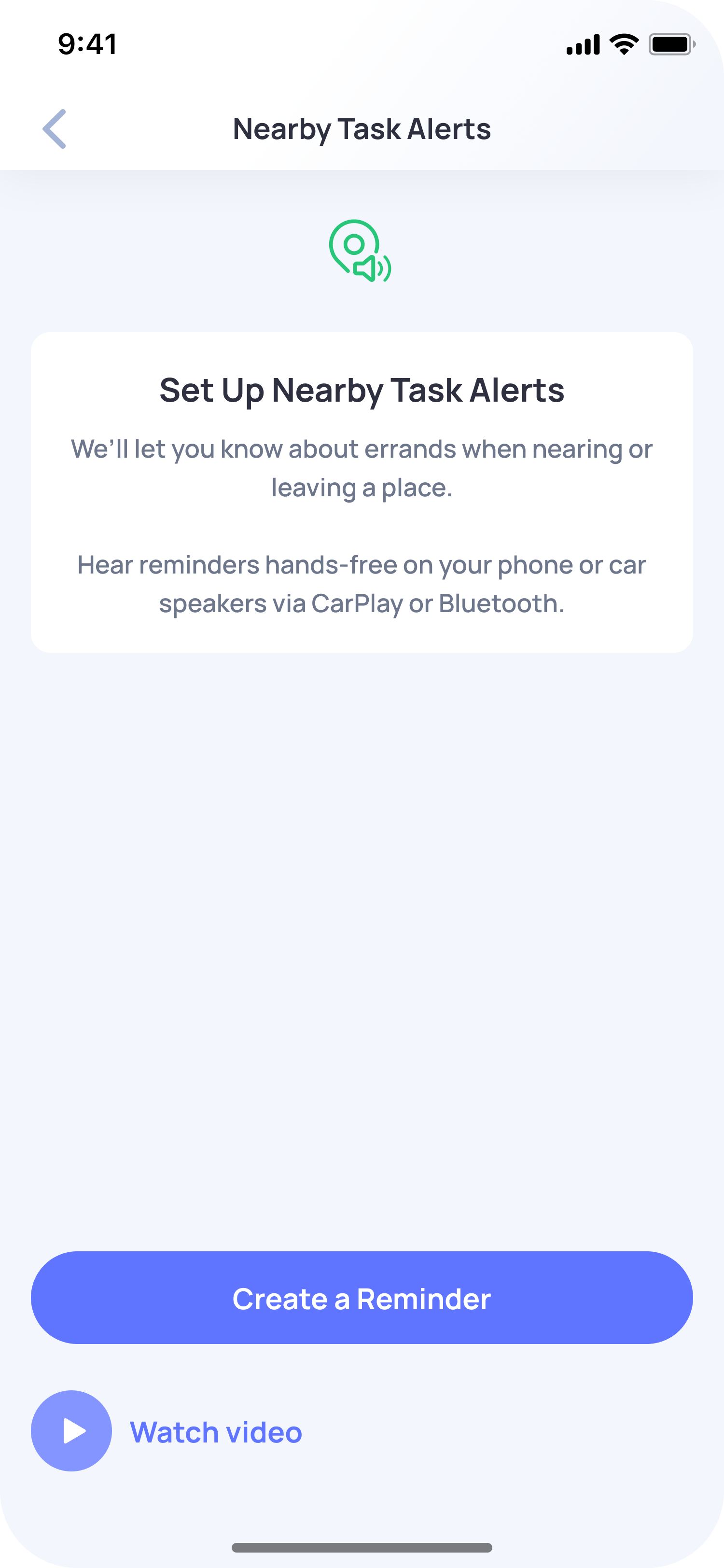
- Tap Create a Reminder.
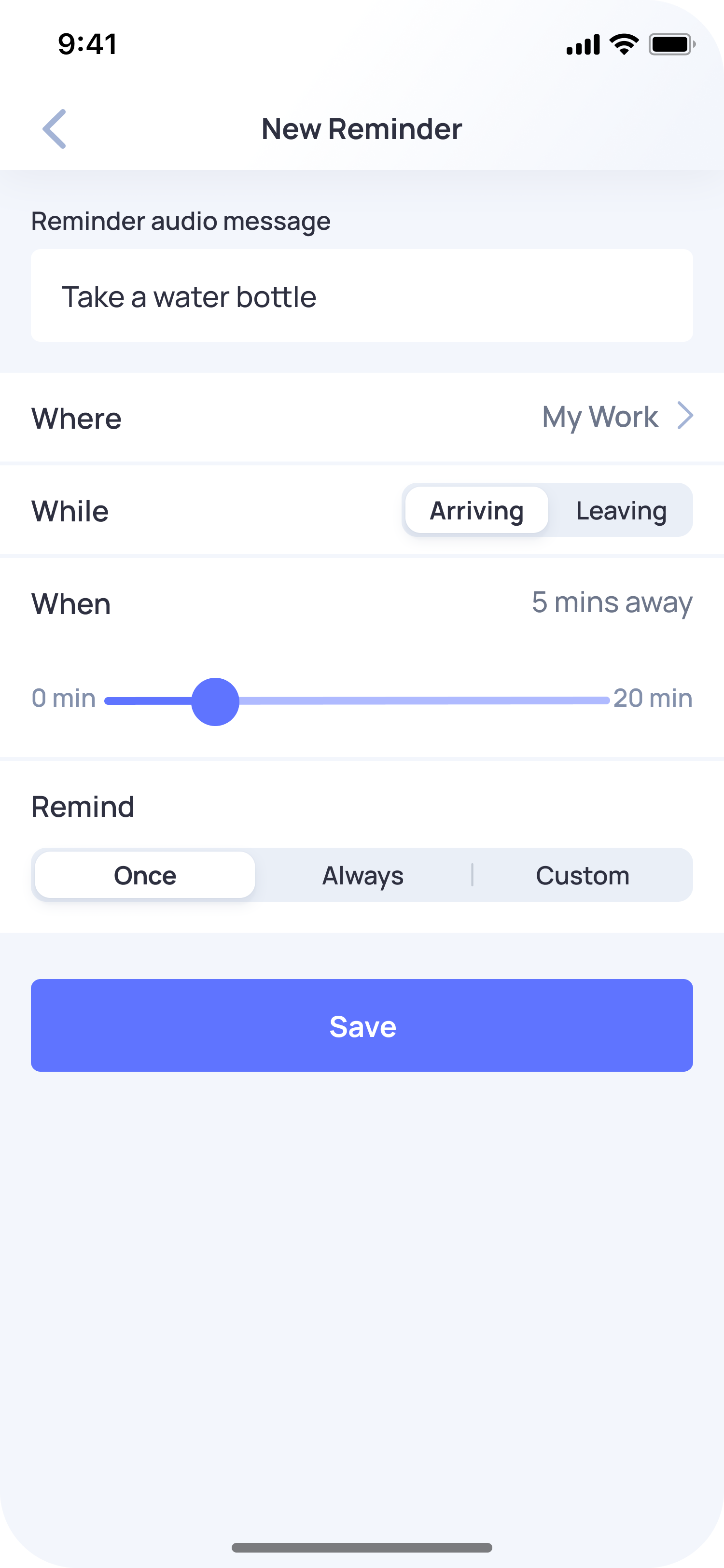
- Enter the message you want to hear, such as “Bring milk” or “Check laptop.”
- Select the location or place where you want the reminder to be triggered.
- Choose when the reminder should play:
- Arriving
- Leaving
- Set the reminder distance or time, if available.
- Choose how often the reminder should repeat:
- Once
- Always
- Custom
- Tap Save.
What does “Arriving” mean?
Arriving means OtoZen will play the reminder when you are getting close to the selected place.
For example, if you set:
Message: Bring milk
Where: Home
While: Arriving
When: 5 minutes
Remind: Once, Always, or Custom (Any)
OtoZen will play the reminder “Bring milk” when you are about 5 minutes away from Home.
Note: If your trip starts from that same selected place, the arriving reminder may not play for that trip. For example, if the reminder is set for arriving at Home, it will play when you are driving toward Home, not when your trip starts from Home.
What does “Leaving” mean?
Leaving means OtoZen will play the reminder when you start a trip from the selected place.
For example, if you set:
Message: Check laptop
Where: Work
While: Leaving
Remind: Once, Always, or Custom (Any)
OtoZen will play the reminder “Check laptop” when you start driving from Work.
What does “When” mean?
When lets you choose how close you should be to the selected place before OtoZen plays the reminder.
For example, if you choose 5 minutes, OtoZen will play the reminder when you are about 5 minutes away from that place while arriving.
What does “Remind” mean?
Once: The reminder plays one time only. After it plays, the reminder is deleted automatically.
Always: The reminder plays every time the selected condition is met.
Custom: The reminder plays only on the selected days of the week when the condition is met.
Best Setup
For the best experience, connect your phone to your car speakers using Bluetooth or CarPlay. If your phone is not connected to car speakers, make sure your phone volume is high enough to hear the reminder.