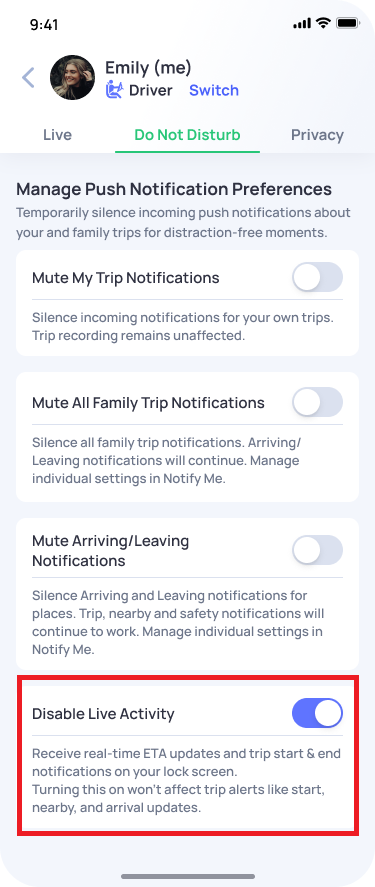
You can disable Live Activity if you do not want to receive real-time trip updates on your lock screen.
To disable Live Activity:
- Open the OtoZen app.
- Tap your profile from the bottom list view.
- Go to the Do Not Disturb tab.
- Turn on the Disable Live Activity toggle.
- Confirm by tapping Turn On.
Once enabled, OtoZen will stop showing real-time trip updates on your Lock Screen.
You may still receive your regular/custom notifications based on your notification settings, such as trip start, trip end, nearby, arrival, or safety alerts.
If you want to receive Live Activity updates again, turn off the Disable Live Activity toggle and confirm by tapping Turn Off.
Note: Disabling Live Activity only stops Lock Screen Live Activity updates. It does not turn off all OtoZen notifications.